Overview:
Should you use a masking region or a solid white fill set to opaque? There are some positives and negatives to each.
Understanding
Filled Regions
Filled Regions can be set to be opaque or transparent, and allow different patterns including solid fills. To learn more about patterns within filled regions, visit www.pattycake.io.
Masking Regions
Masking regions are always opaque and set to match paper color (white). The intended use is to (mask) cover objects in views. You can have two different types, either 2D masking regions, or 3D masking regions (which are 2D masking regions in a 3D family).

Behavior
Each will behave differently depending on the structure of the family and setup. Both can actually do the behavior of the other quite well in certain circumstances, but there are some clear differences that become clear when exported to CAD and in symbols.
Selection (Symbols)
A big difference is when selecting a generic annotation (symbol) that has one of these elements in them; a filled region will highlight the entire family, making it illegible while moving around. Not the end of the world, but can be frustrating if moving around many different symbols at once. A masking region on the other hand will not highlight.
Note: This is obviously an easy way to tell if the piece is a masking region or a filled region in a symbol.

CAD Export
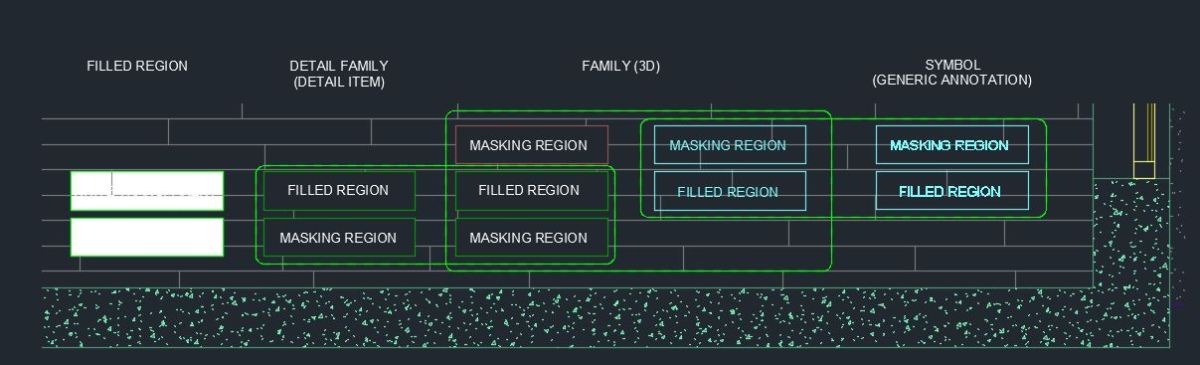
In Revit, we don’t ‘really‘ care about what the CAD export looks like. But, it is something to make note of in case you routinely are using the CAD for other purposes or coordination. The masking region and filled region act quite differently whether it’s in a family, what type of family, all settings, etc. See below for the full chart of differences.
Notes:
- Filled Regions in the project will always export with a solid hatch pattern
- Masking regions in a family, and filled regions within a family will ‘cut’ the pattern below it (floor pattern stops).
- Symbol (Generic Annotation) will never cut the floor pattern below it, whether it’s in a family or not.