Back in beta! Stay tuned.

documentation

Environmental Product Declarations

A simple black outline of a clipboard with the bold, uppercase letters EPD centered on the board, symbolizing Environmental Product Declarations, set against a plain white background.

Environmental Product Declarations (EPDs) are increasingly vital tools for transparency in building product specification, detailing a product's environmental impact throughout its lifecycle. Based on a Life Cycle Assessment (LCA) and third-party verified, EPDs are governed by Product Category Rules (PCRs) to ensure accurate comparison between products. Architects should note the distinction between Industry-wide EPDs, which cover generic product types, and Product Specific EPDs, which offer greater contributions toward sustainable building credits.

General Use Abbreviations

Three simple human figures with speech bubbles above them display SOW?, RTU., and EOD?!—common drawing set abbreviations often seen as construction abbreviations or workplace jargon.

Navigating the world of architectural and construction abbreviations can be tricky, especially when deciphering casual communications like emails or on-site meeting discussions. Our "Miscellaneous Abbreviations" resource provides a concise, ready-reference list to help clarify common industry acronyms. This evolving compilation is designed to be a practical tool, ensuring you're always in the know, even when industry jargon gets dense.

Wall Partition Types

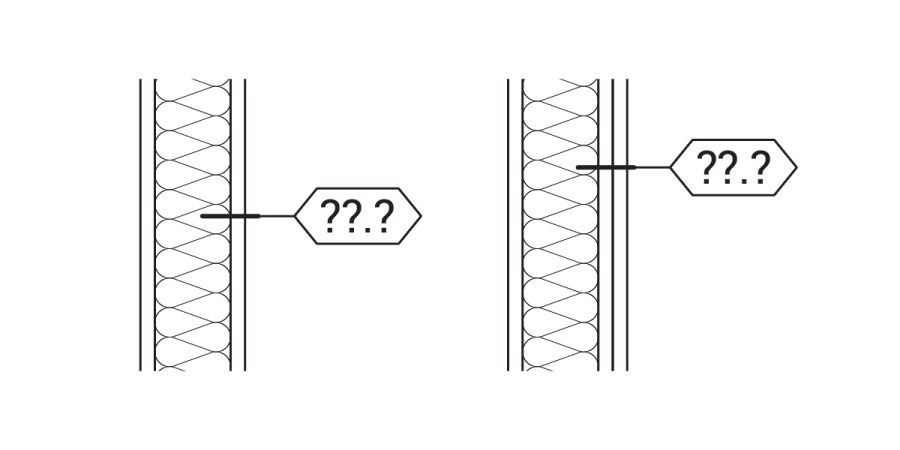
Two black-and-white diagrams of cellular structures side by side, each with a hexagonal label marked ??? pointing to a specific part of the structure within the vertical columns, resembling different wall partition types.

Effective wall labeling is crucial for clear construction documentation. This guide explores various approaches to classifying interior partition walls, from simple designations to complex, formula-based systems. Understanding the pros and cons of each method, along with considerations for fire-resistance ratings, acoustics, and detailed sheet notes, helps architects choose the most consistent and efficient documentation standards for their projects.

Open to Below; Open to Above

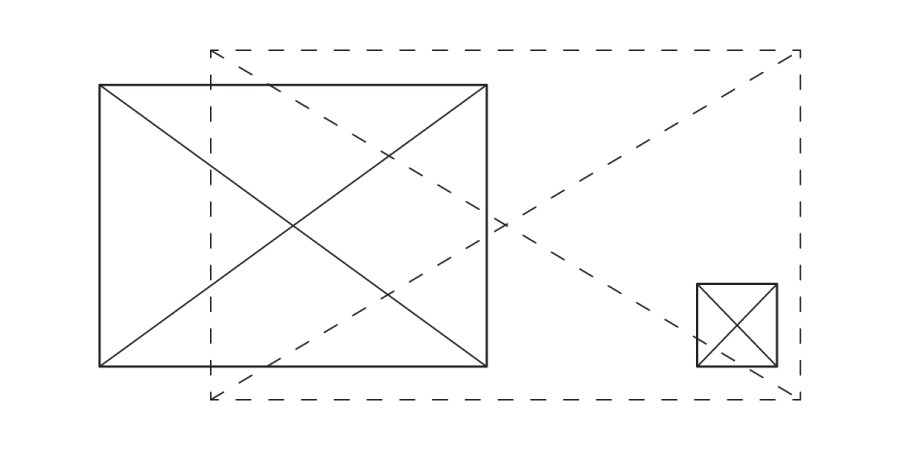
A large solid-lined square and a smaller solid-lined square appear on a white background. Both squares, marked “Open to Below,” have diagonal lines inside. Dashed lines connect their corners, outlining a larger rectangle.

Deciphering "open to below" and "open to above" in architectural plans is crucial for clarity. "Open to below" areas, visible within the view range like floor openings or shafts, are delineated with solid lines and an "X" mark. Conversely, "open to above" spaces, such as multi-story atriums or soffits, are represented by dashed lines, indicating elements not directly seen in the current plan view. Understanding these graphic standards ensures precise communication in architectural documentation.

Industry Graphic Standards

A large clipboard icon with checkmarks is on the left. On the right are six diagrams showing boxes in various orientations and three grid patterns, reflecting Industry Graphic Standards. The background is white.

Graphic standards in architectural documentation are dynamic, constantly evolving with project needs and office conventions. While internal guides are essential, a commitment to industry consistency enhances legibility and streamlines collaboration. These standards, developed through diverse project experiences, aim to provide a flexible framework, encouraging adaptation and refinement to best serve the unique communication goals of each drawing type.

Making a PAT file from a Picture

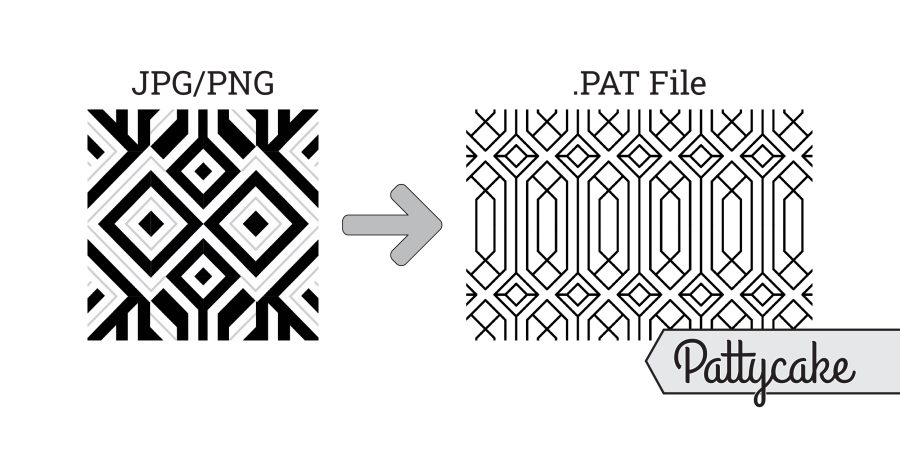
A bold geometric black-and-white pattern Picture labeled JPG/PNG is shown on the left, with an arrow pointing to a similar, thinner-lined design labeled PAT file on the right. “Pattycake” appears in a tag at the bottom right.

Crafting PAT files from images for architectural documentation can be a nuanced process. This guide explores leveraging Pattycake and Revit, focusing on Pattycake's Drawing Canvas for pattern representation. It delves into critical aspects like module size, simplifying with the Least Common Multiple to avoid import issues, and understanding PAT file limitations for precision. Learn to optimize your workflow for professional architectural applications.

How To Document a Custom Railing Pattern

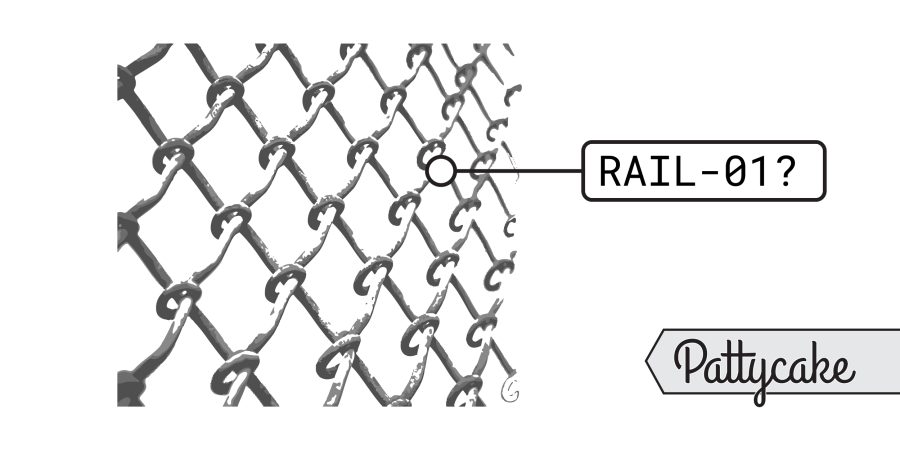
A close-up of a chain-link fence is shown. One link is highlighted with a label reading RAIL-01? and the word Pattycake appears in stylized text at the bottom right corner, referencing custom railing pattern documentation.

Custom patterns are increasingly integrated into architectural components, driven by advancements in laser cutting and CNC machinery. This guide focuses not on design, but on the crucial process of documenting these unique patterns effectively. Understanding the end goal—representation rather than literal modeling—is key. The article emphasizes using PAT files and detailed callouts, along with layout diagrams and renderings, to ensure precise communication of design intent to manufacturers and contractors, ultimately streamlining project delivery.

Case Study: CAD; PAT files vs Blocks vs Lines

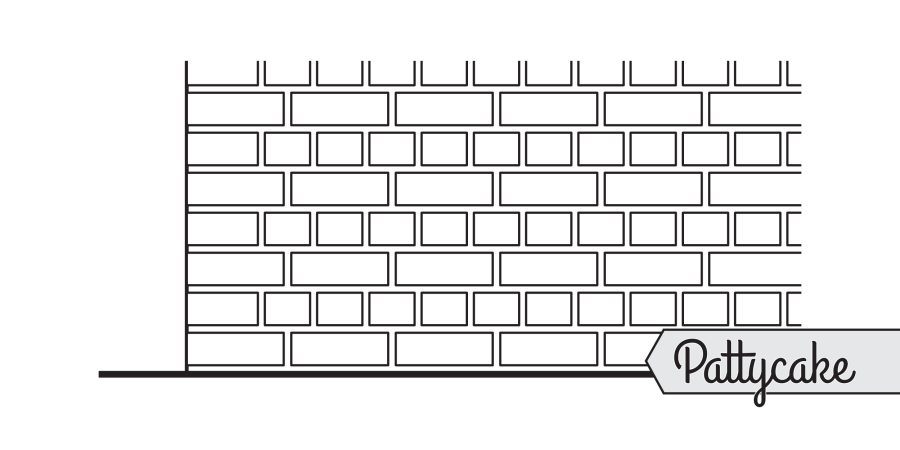
A simple line drawing of a brick wall with five horizontal rows and staggered bricks, perfect for CAD projects or as PAT files. The word Pattycake appears in script inside a label on the lower right corner.

For too long, CAD professionals have grappled with inefficient methods for repetitive elements. This case study rigorously compares traditional lines and blocks against the power of PAT files for creating architectural elevations. Discover how PAT files dramatically reduce file size and drawing time, offering unparalleled speed and flexibility for design changes. Our findings provide concrete evidence for optimizing your workflow, demonstrating significant time savings that directly impact project efficiency.

Conformed Set

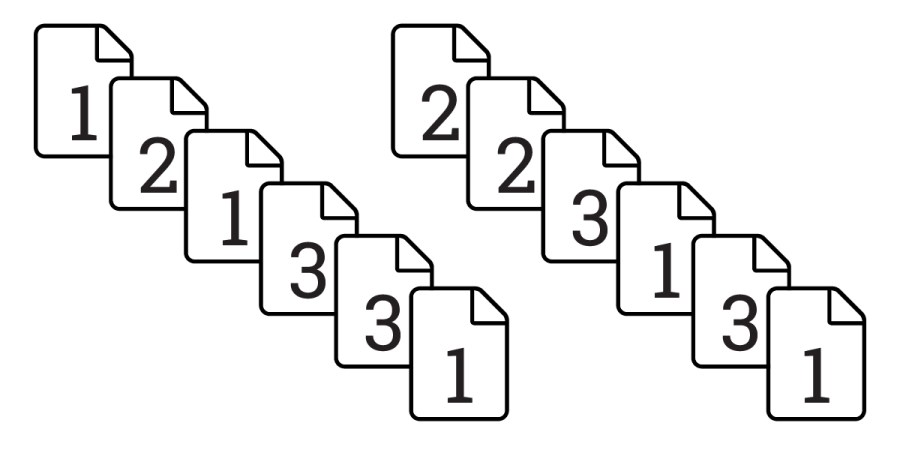
Nine document icons form two diagonal lines, each representing a Conformed Set. The first line shows documents labeled 1, 2, 3 three times, while the second line repeats 2, 3, 1 three times.

Understanding a "conformed set" is crucial for architects and design professionals. This artificial drawing set, never formally issued, compiles the latest updated sheets from various bulletins into one comprehensive document. Unlike simply printing from design software, a conformed set ensures all revisions are accurately represented, providing a clear, up-to-date snapshot of the project's progress without the risk of showing unvetted changes or incorrect revision bubbles.

Mixing AutoCAD with Revit

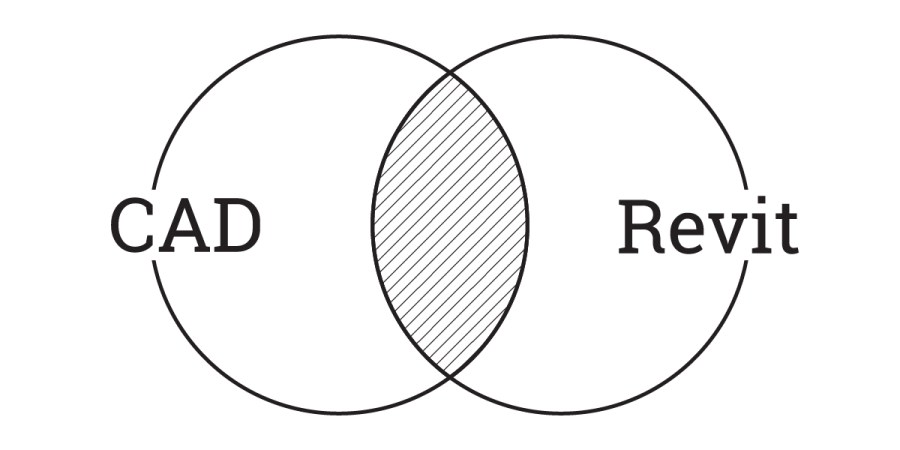
A Venn diagram with two overlapping circles; the left is labeled AutoCAD, the right is labeled Revit, and the overlapping section is shaded to represent mixing AutoCAD with Revit.

Integrating AutoCAD and Revit within architectural workflows presents unique challenges and benefits. While not ideal for pure BIM, a mixed approach can leverage Revit's coordination and auto-naming while retaining existing CAD details, offering a strategic transition or a persistent hybrid solution. Careful planning is crucial to manage graphic consistency, avoid double work, and ensure a clear division of tasks between the two platforms.

Revit, Masking Regions vs Filled Regions

Four overlapping rounded rectangles arranged diagonally, each using different Filled Regions: dots, solid gray, diagonal lines, and no fill. All have a thin black outline. The design highlights masking regions as seen in Revit on a white background.

When working in architectural software, the choice between masking regions and filled regions can significantly impact your workflow and output. This article delves into the nuances of each, exploring their behavior in families, selection within symbols, and crucial differences during CAD export. Understanding these distinctions is key for professionals seeking to optimize their project documentation and ensure accurate representations, particularly when dealing with complex elements and external coordination.

Drawing Set Abbreviations

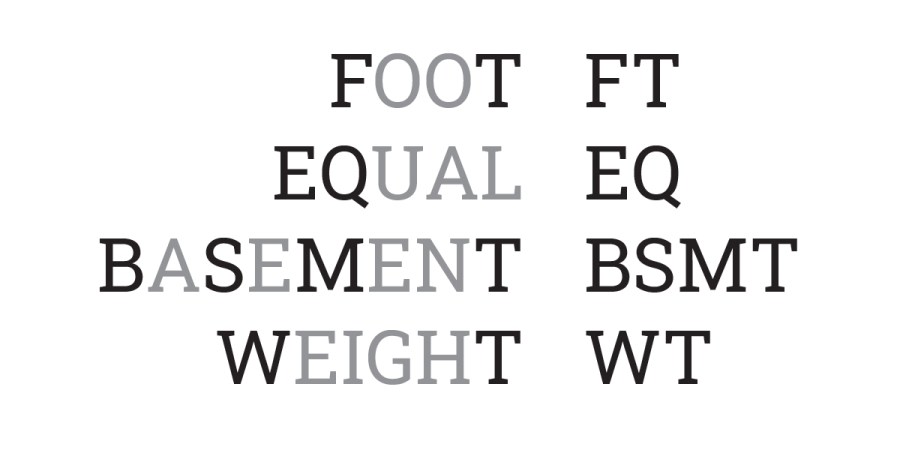
Four words—FOOT, EQUAL, BASEMENT, and WEIGHT—are each shown in full with their drawing set abbreviations: FT, EQ, BSMT, and WT, arranged in two columns on a white background.

Achieving consistency in architectural drawing sets is paramount, especially when using abbreviations. While specific abbreviations may vary between offices, the key lies in maintaining uniformity throughout a project's documentation. Listing all chosen abbreviations at the beginning of your drawing set, and ensuring new team members review them, is crucial for preventing frustrating inconsistencies and streamlining the design and construction process.

Revit Keynotes

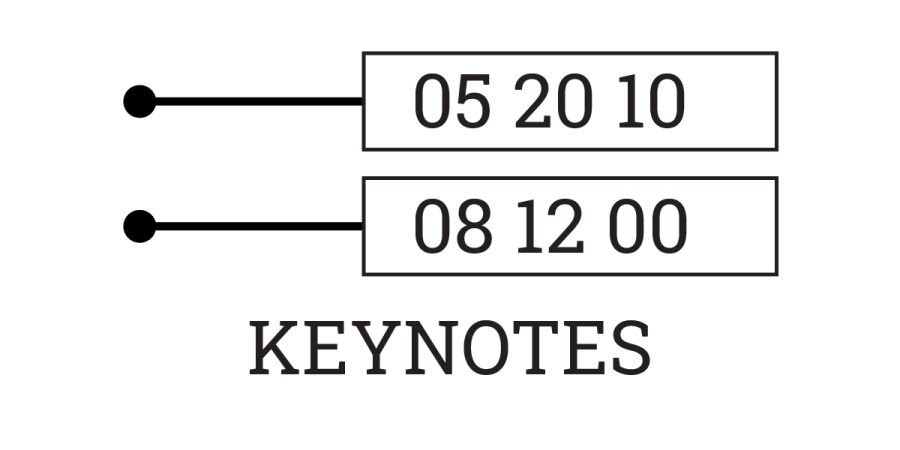
Two horizontal lines with black dots on the left point to two boxes containing the numbers 05 20 10 on top and 08 12 00 below. The word KEYNOTES in bold capitals appears underneath, referencing Revit Keynotes for detailed annotations.

Revit keynotes offer a powerful, yet often underutilized, approach to annotation beyond traditional specifications. By referencing external text files, keynotes streamline coordination across multiple drawing types and families, significantly reducing manual updates and ensuring greater consistency. This method, particularly when leveraging collaborative platforms like Google Sheets for managing keynote data, enhances efficiency and accuracy in architectural documentation, making it a valuable tool for firms seeking to optimize their workflow and improve drawing clarity.

Revit, How to Show Demo Infill for Doors

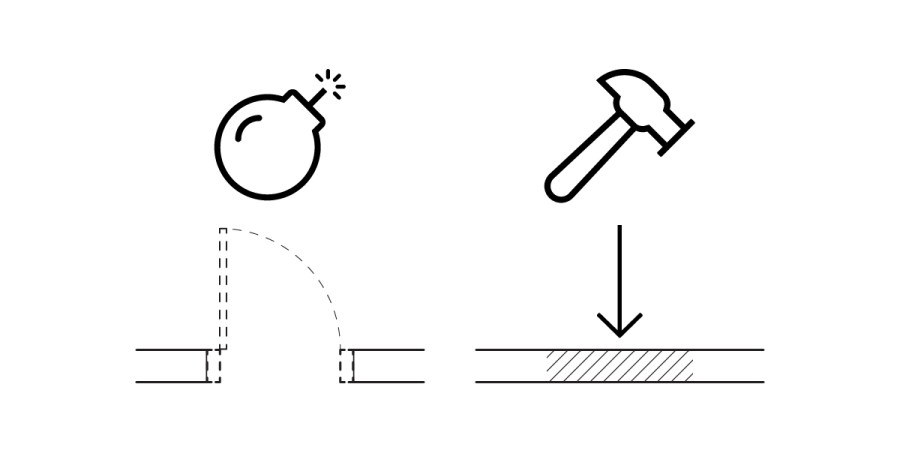
A black and white illustration shows a bomb breaking a bridge on the left and a hammer driving straight down onto a surface on the right, with arrows indicating the direction of force, similar to how demo infill is shown in Revit.

In Revit, managing demolition infill for hosted elements like doors can be challenging, as the automatically generated infill often misrepresents new construction. This article outlines a practical workaround: by assigning a specific MARK value to the infill geometry, users can apply a custom hatch override via a filter. This method ensures accurate documentation and visual representation of new construction infill, improving clarity in architectural drawings.

Title Block (TB) .RFA Tips & Tricks

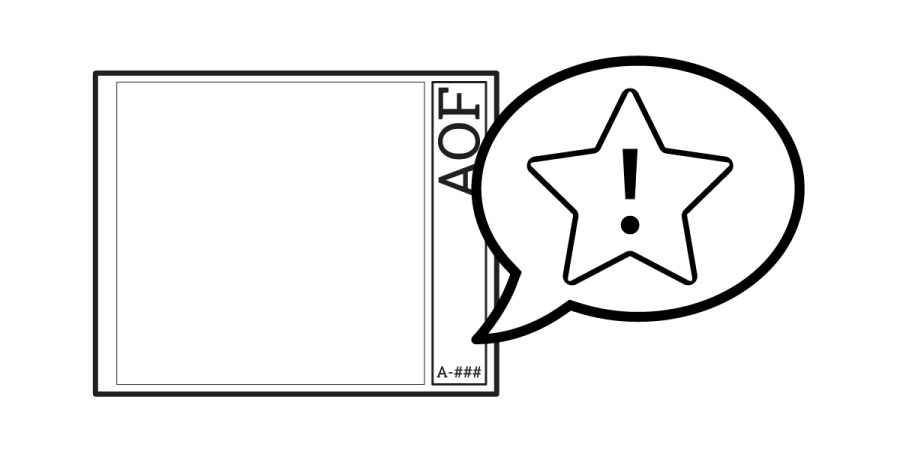
A square title block frame with “AOF” written vertically on the right and “A-###” at the bottom. A speech bubble beside it features a star with an exclamation mark—perfect for showcasing RFA tips & tricks.

Navigating Revit's title block family can be challenging. This guide offers essential tips and tricks, drawing from years of experience. Learn how to effectively manage company logos, handle architect's stamps, and optimize sizing for various sheets. Discover best practices for margins, dimensions, and the strategic use of draft text to streamline your workflow and avoid common pitfalls in Revit title block creation.

Engineering Drawing Scales Printed Size

A graphic features a scale, pencil, and ruler above the word engineering in bold, black lowercase letters—simple black line drawings that evoke the precision of Engineering Drawing.

Understanding engineering scales is crucial for accurate architectural representation. This guide provides a comprehensive reference for how designs translate from digital to print, offering clear insights into various scale values and their corresponding "real" sizes. Engineers and architects alike can utilize this resource to ensure precise documentation and effective communication of large-scale projects, optimizing workflows and minimizing errors.

Architectural Drawing Scales Printed Size

A black and white image with a scale icon, a crossed pencil and ruler icon, and the word architectural—referencing architectural drawing scales—written below in bold, sans-serif font, ideal for emphasizing printed size accuracy.

Understanding architectural scales is fundamental for accurate design and printing. This comprehensive guide details various architectural scales, from 12" = 1'-0" to 1" = 100'-0", providing their corresponding fractions, units, and ratios. It also includes practical tables illustrating how real-life dimensions translate to printed sizes at common scales, essential for professionals and students alike.

CSI MasterFormat Specifications

The image shows the word SPEC in large bold letters above three pairs of number signs (## ## ##), each pair enclosed in a dashed box, referencing Specifications or the CSI MasterFormat numbering system.

The CSI MasterFormat is an essential tool for organizing construction specifications in the U.S. Its standardized 6-digit division system, covering everything from existing conditions to specialized equipment, ensures clarity and reduces errors. Professionals benefit from its established framework, preventing gaps and overlaps, and simplifying product specification with manufacturer-provided formats. This consistent layout streamlines project documentation across all construction industries.